Requirements
Before you start, make sure you have:
A WordPress built website.
A ModulON AI API Key from your ModulON AI dashboard
Admin access to WordPress
Adding ModulON AI to WordPress
WordPress powers millions of websites, and the good news is that there are multiple ways to integrate the ModulON AI Chat Plug‑in. Depending on your site setup and technical comfort level, you can choose the method that works best for you. Let’s walk through each option:
Method 1: Using a Dedicated Plugin
Adding custom scripts to WordPress is one of the easiest ways to integrate the ModulON AI Chat Plug‑in. The most common approach is through Header/Footer script injection, which lets you paste the chatbot’s <script> tag directly into your site without touching core theme files.
To do this safely, you’ll first need to install a plugin such as Header and Footer Scripts or WPCode. These tools provide a simple interface for managing custom code, ensuring your chatbot loads correctly across all pages while keeping your theme intact.
For Header and Footer Scripts
1. Go to Settings
2. Click Select Header and Footer Scripts.
For WPCode
1. Go to Code Snippets
2. Select Header & Footer
Copy the <script> tag from your ModulON AI dashboard.
Paste it into your WordPress site using a plugin like Insert Headers and Footers or through your theme’s header.php or footer.php file.
Header: The chat plug‑in will load earlier, ensuring it’s available as soon as the page begins rendering.
Body: The plug‑in loads alongside the main page content.
Footer: The plug‑in loads last, making it non‑blocking and minimizing any impact on page speed.
Tip: For most users, placing the script in the Footer is the safest option, as it prevents delays in loading your site’s primary content while still ensuring the chatbot appears correctly.
This method is quick and works across most WordPress themes.
Note:
Always double‑check the domain linked to your API key.
The domain in the API key must exactly match the domain where you’re adding the widget.
If there’s a mismatch (e.g., using app.modulonai.com when the key was created for modulonai.com), the API key will not work.
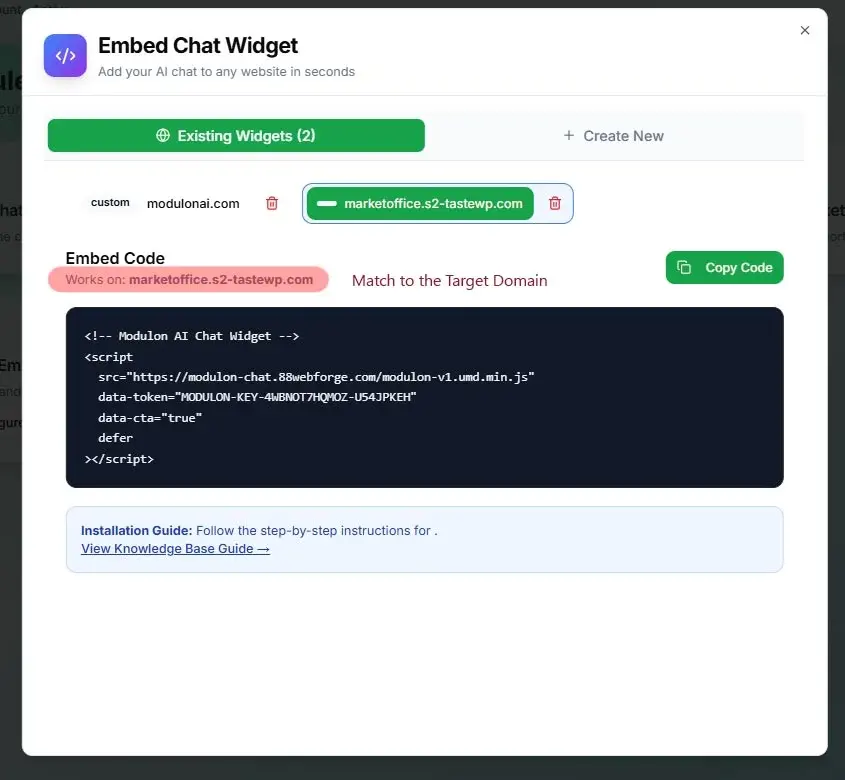
API key from Dashboard
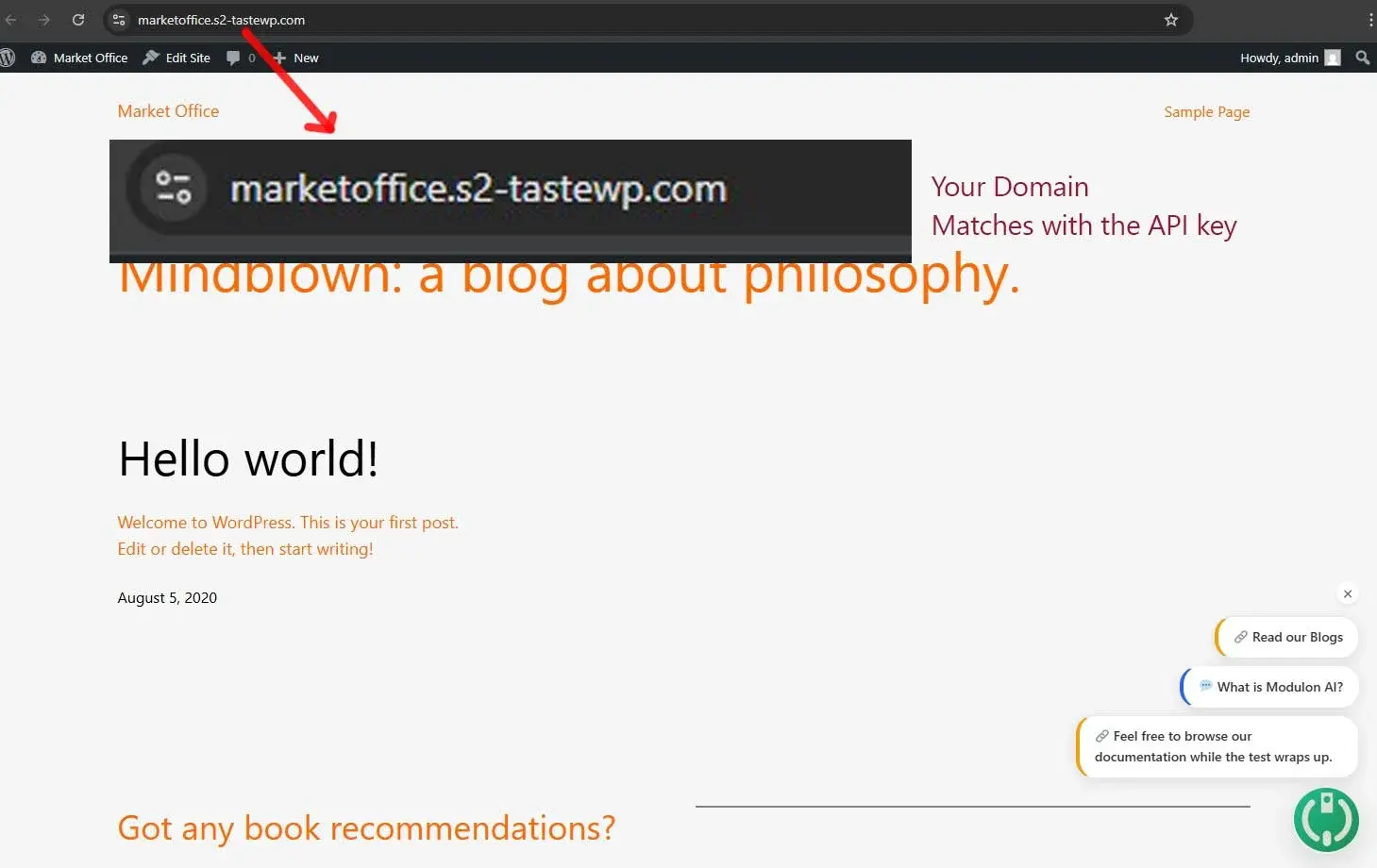
Preview - WordPress Site with Modulon Chat Plug-in
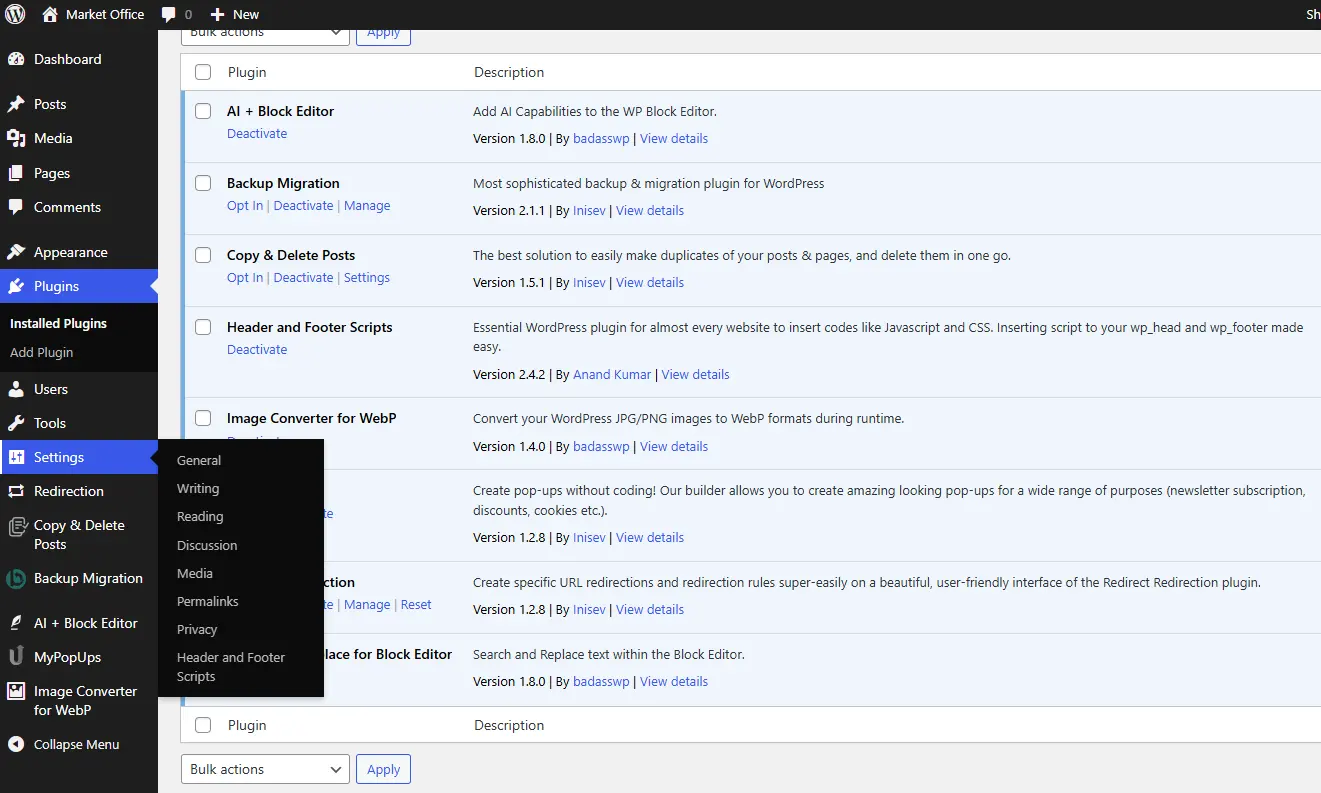
Header and Footer Scripts PlugIn Installed
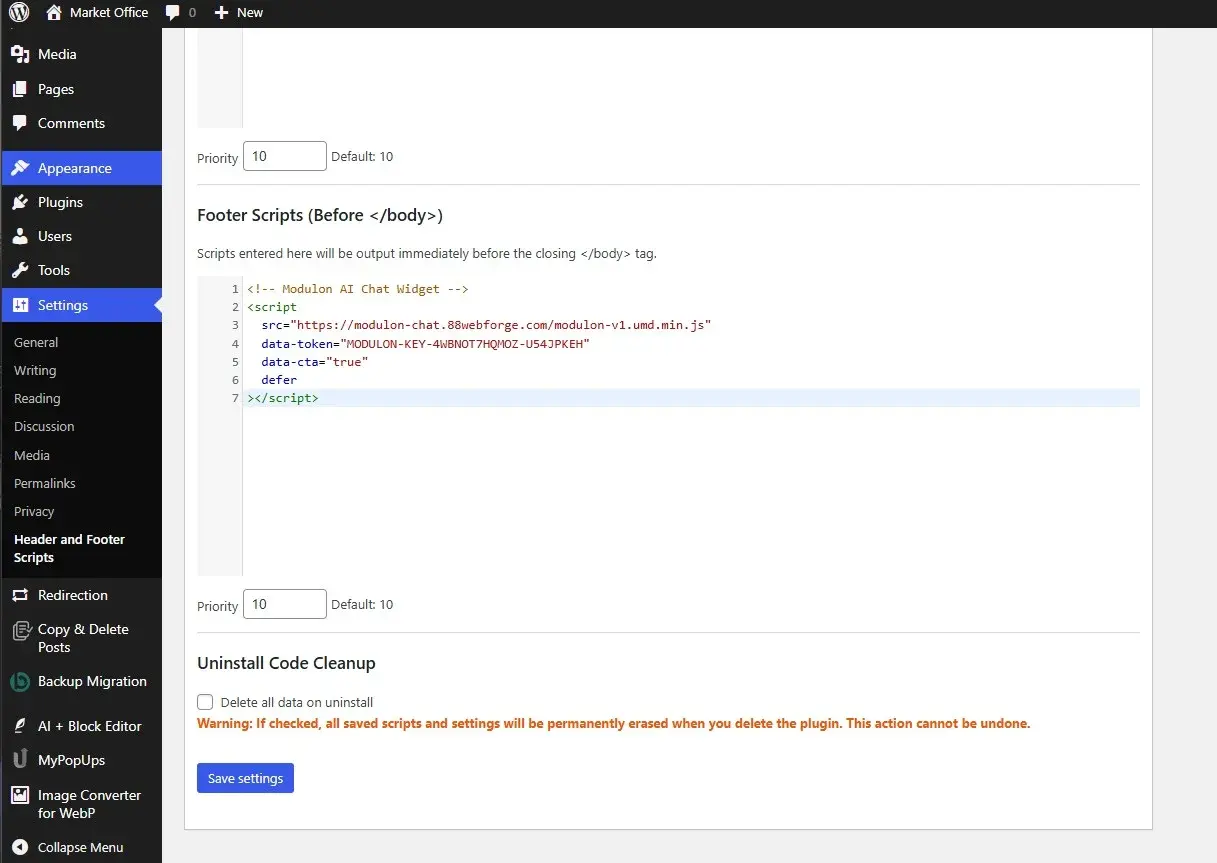
Header and Footer Script - Insert Script from Modulon AI Chat Plug-in
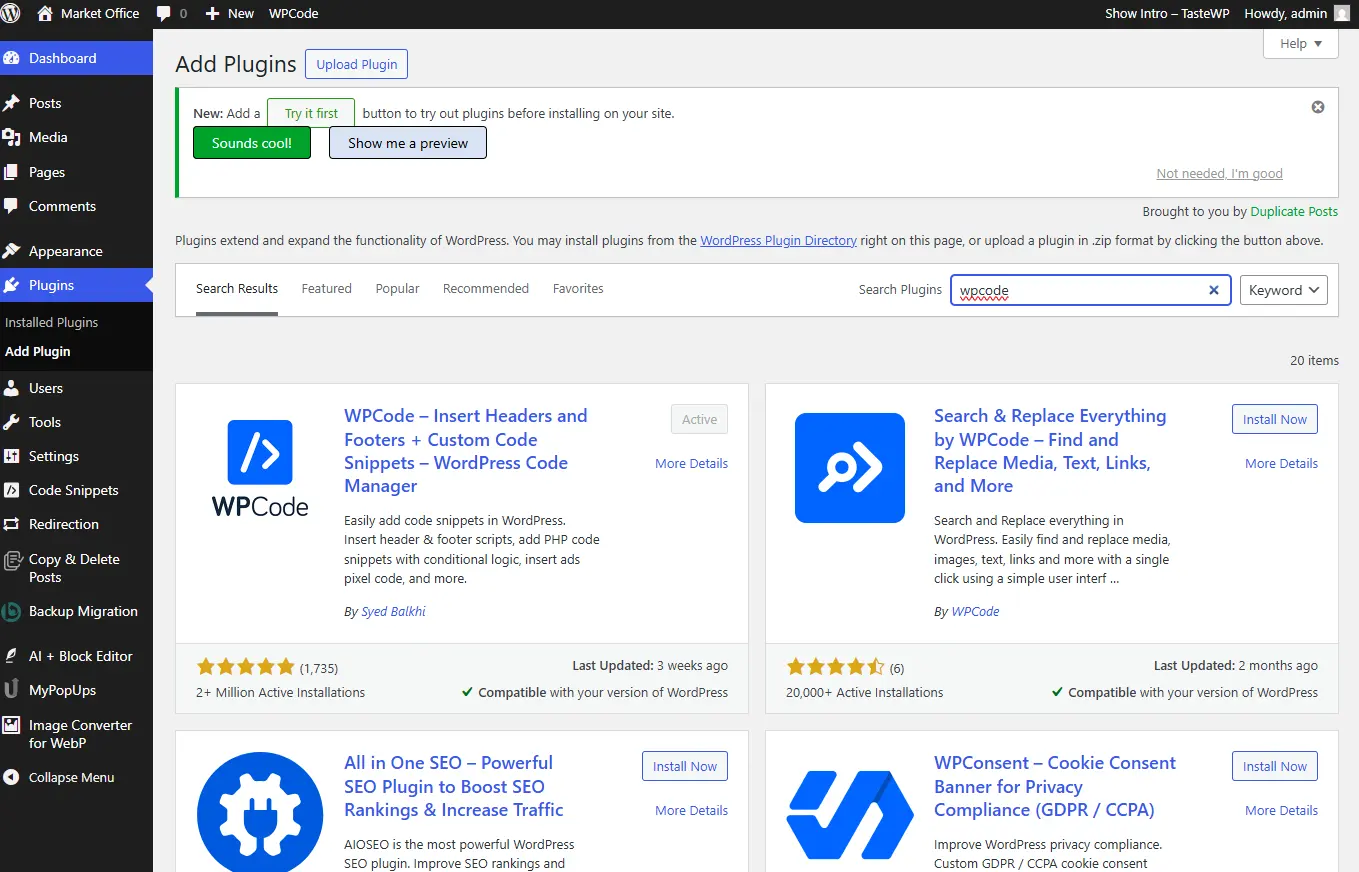
WPCode Plug-in Installation - Dont forget to Activate
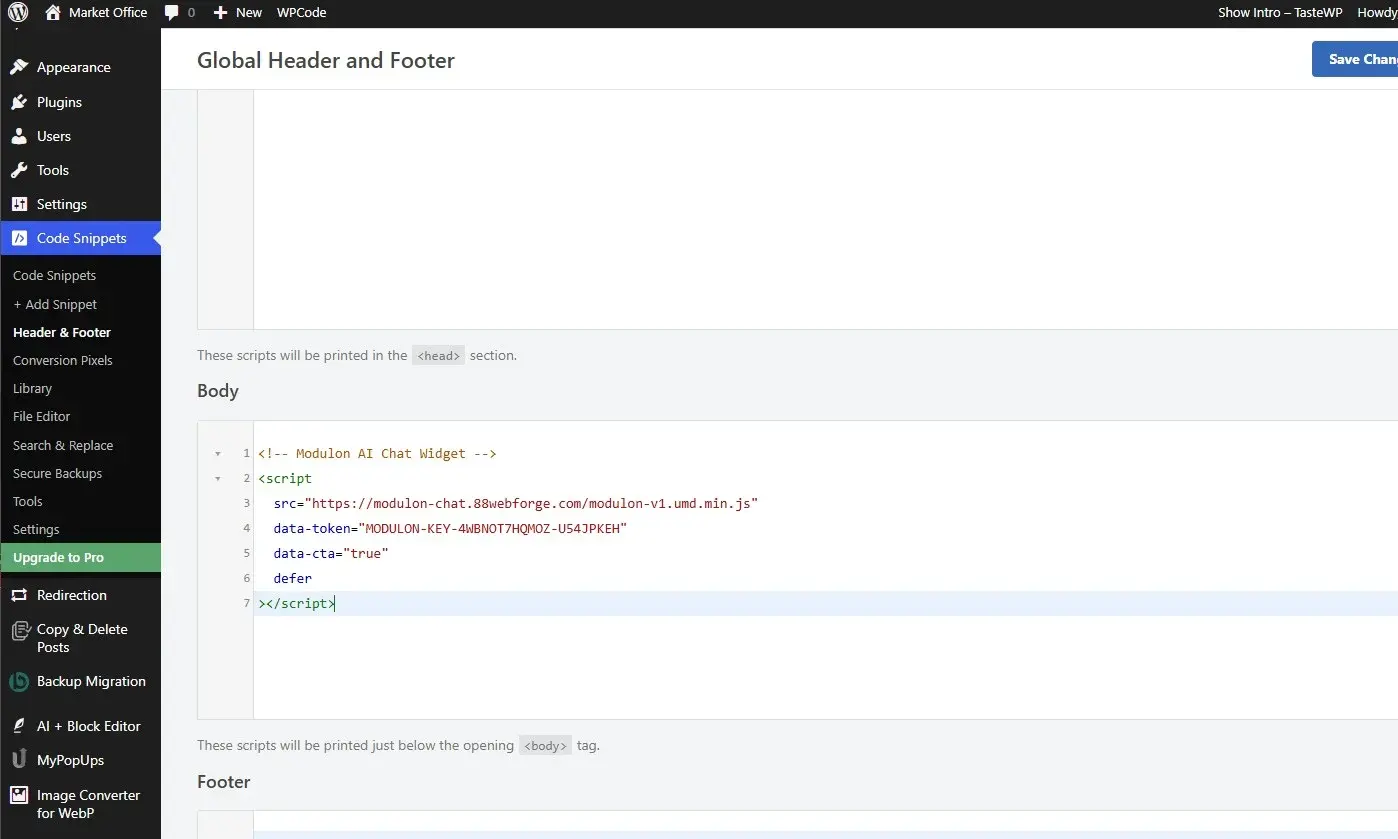
WPCode Plug-in - Inserting API key from Modulon AI Chat Plug-in
Method 2: Embedding via a Custom HTML Block
Go to your WordPress Editor (Gutenberg or Classic).
Add a Custom HTML Block to the page or post where you want the chatbot to appear.
Paste the ModulON AI script directly into the block.
Ideal for placing the chatbot in specific sections of your site.
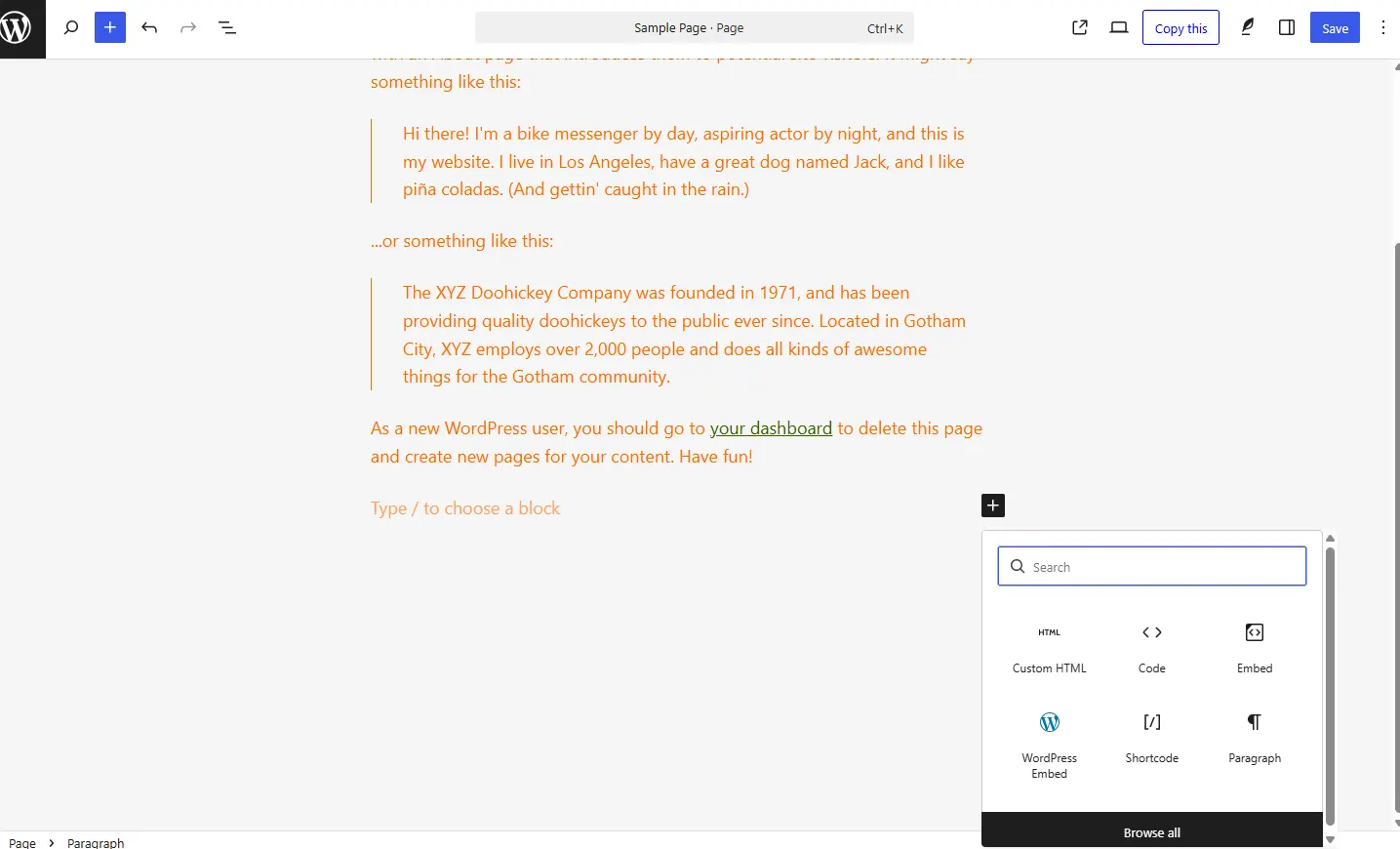
Insert Via Custom Html Block - Modulon Chat Plugin
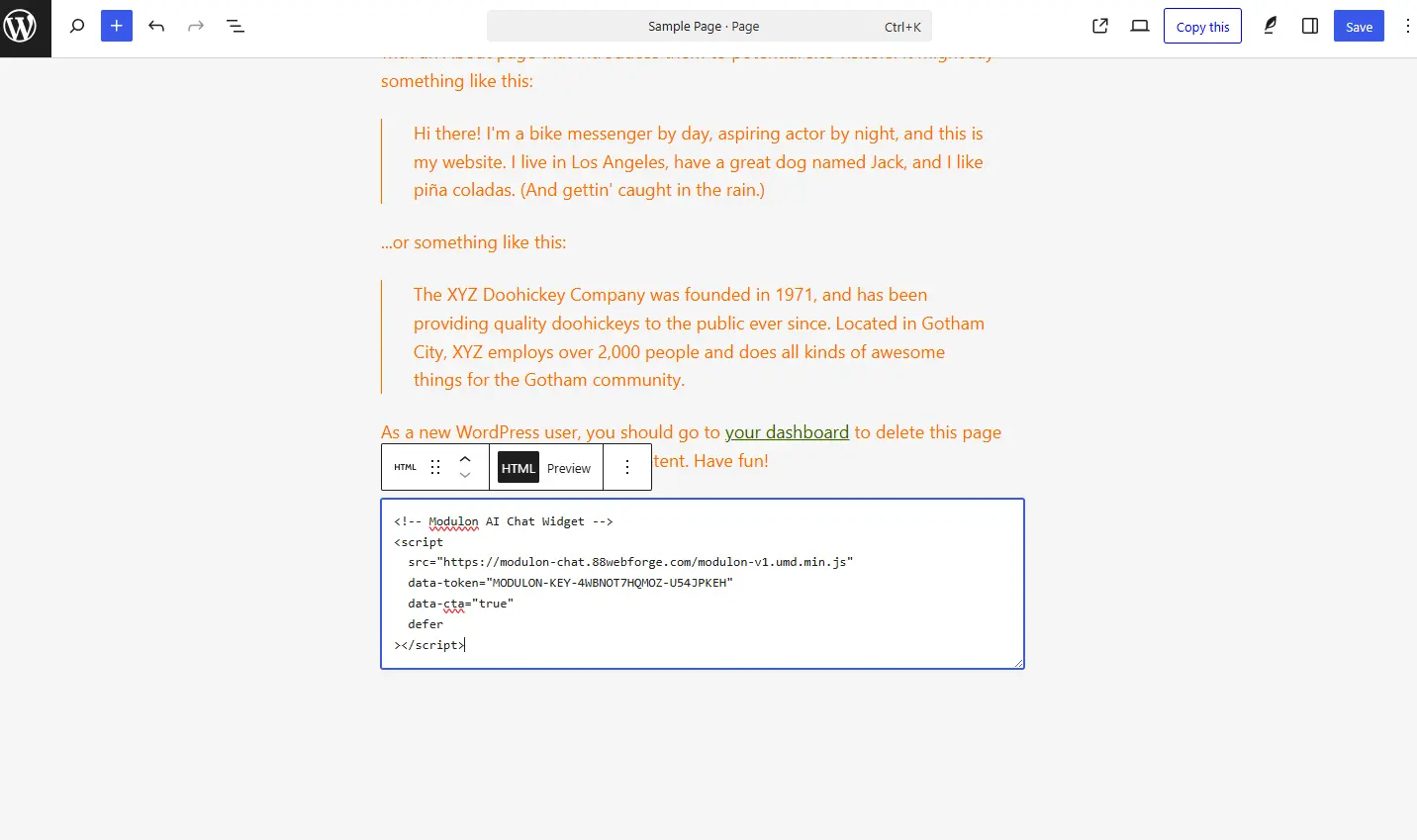
Insert Via Custom Html Block - Modulon Chat Plugin
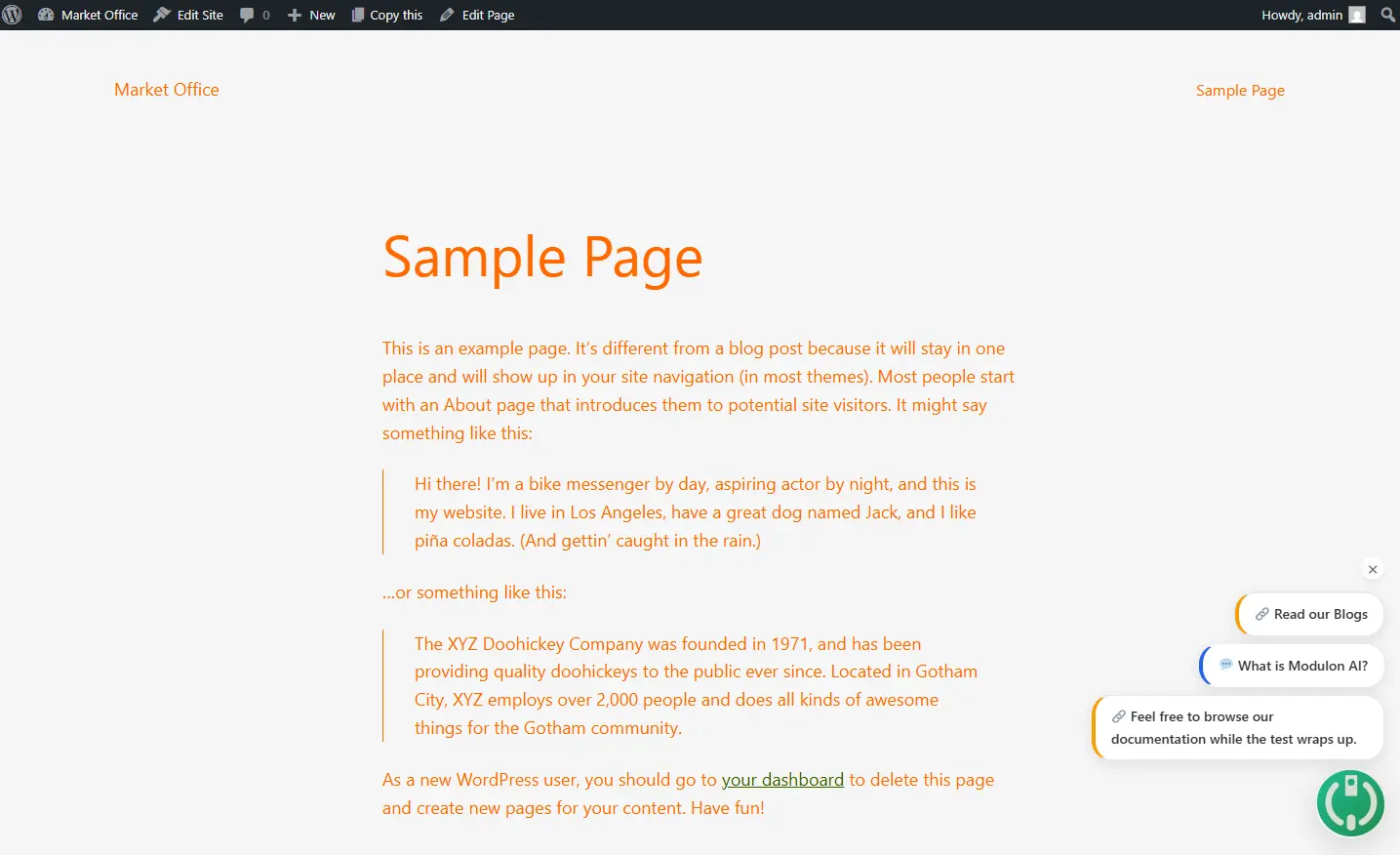
Page with Modulon Chat Plugin WordPress Preview
Method 3: Using the Header/Footer Script Injection (Classic Themes)
Copy the <script> tag from your ModulON AI dashboard (Existing Widget Tab).
Open your WordPress theme files via Appearance → Theme File Editor.
Locate and edit either:
header.php → the chatbot will load early with the page.
footer.php → the chatbot will load last, non‑blocking and better for performance.
Paste the script just before the closing </head> (for header) or </body> (for footer).
Save changes and refresh your site to confirm the chatbot appears.
Method 4: Theme/Child Theme Integration
This method is intended for developers or advanced WordPress users who want full control over how the ModulON AI Chat Plugin script is loaded.
Use a Child Theme
Create or activate a child theme to avoid losing changes when the parent theme updates.
This ensures your customizations are safe and persistent.
Add the Modulon Plugin Script via functions.php
Open your child theme’s functions.php file.
Use WordPress’s wp_enqueue_script() function to register and load the ModulON AI script globally.
Example:
3. Or Insert Directly into Template Files
Place the <script> tag into specific template files (e.g., footer.php, page.php) if you want the chatbot to appear only on certain pages.
Why Choose This Method?
Global Control: Ensures the chatbot loads across your entire site.
Consistency: Changes are tied to your child theme, so they persist through parent theme updates.
Flexibility: Developers can decide exactly where and how the script is injected.
No matter which method you chose whether plugin‑based injection, custom HTML blocks, dedicated script managers, direct theme edits, or advanced child theme integration, you now have ModulON AI Chat Plugin successfully installed on your WordPress site.
Each approach offers its own balance of simplicity, flexibility, and control, ensuring that both beginners and developers can find a workflow that fits their needs. The most important step is always verifying that your API key matches your domain, since this guarantees the chatbot will function correctly in production.
With the installation complete, you’re ready to move beyond setup: customize the chatbot’s look and feel, refine its conversations, and monitor analytics to optimize engagement. By following these methods, you’ve not only deployed a powerful support tool but also built a scalable foundation for interactive customer experiences across platforms.